iPad Kiosk App: How Businesses Use iOS for Self Service Solutions
Businesses have been trying to do more with fewer resources for years. An iPad kiosk app is one of the simplest ways to do that. It uses a device people already know. It runs one focused app. It sits right where the customer interaction happens. No extra hardware. No complex setup. No need for someone to stand there and manage it.
What makes this setup stand out is its flexibility. The same iPad can run a self ordering setup in a restaurant. It can also be used for visitor check in at an office, patient intake at a clinic, or a product catalog in a store. The device stays the same. The app changes the experience.
In this guide, we will go through how iPad kiosk apps work. We will also cover how to set up an iOS kiosk app, what features matter, and how different industries use them today.
What Is an iPad Kiosk App?
An iPad kiosk app is a software application that locks an iPad into a single purpose mode. It is used for customers or staff. Instead of acting like a normal tablet, the iPad runs one app or a small set of apps. Everything else is restricted.
Users cannot browse the internet freely. They cannot open system settings. They cannot switch apps. They also cannot access anything outside the intended experience.
This turns the iPad into a focused self service tool. Businesses can place it in customer facing areas without worrying about misuse or tampering.
The app controls what the user sees and does. iPad kiosk mode controls what they cannot access. Both work together. The app handles the experience. The mode keeps it locked.
This is why the choice of app matters. A well built kiosk app that matches your workflow will always work better than a generic setup.
What Is iPad Kiosk Mode?
iPad kiosk mode is a setting that locks the device to one app or a limited set of apps. It turns a normal iPad into a dedicated self service terminal.
When kiosk mode is active, users cannot exit the app. They cannot open device settings. They cannot freely use a browser or system features.
This keeps the experience controlled. It also keeps it consistent for every user.
How to Set Up an iPad Kiosk App for Your Business?
The setup process depends on how many devices you use and how you want to manage them.
For a single device, Guided Access is the simplest option. You enable it in Accessibility settings. You set a passcode. You open your iPad kiosk app. Then you activate kiosk mode with a triple press of the side button. This works for small setups, but it does not scale.
For multiple devices, businesses use an MDM solution. iPads are enrolled through Apple Business Manager. Then, a kiosk policy is created in the MDM platform. You can choose single app mode, multi app mode, or a web restricted setup. After that, the policy is assigned to devices and pushed remotely. Devices then lock into kiosk mode automatically without on site setup.
For custom software, the process starts earlier. The full user flow is defined first. This includes how users interact with the app, how it connects with systems, and how it should function. The app is then built around these needs. It is tested with POS and payment systems. After that, it is deployed using MDM.
Key Features to Look for in an iPad Kiosk App
The app is the main part of the kiosk. It controls how customers interact and how smooth the experience feels.
Locked and secure interface
The app should stay fixed in full screen. Users should not be able to exit, switch apps, or access system settings. Everything should stay inside the kiosk flow.
Custom branding and UI
The kiosk should match your brand style. This includes logo, colors, fonts, and layout. A clean, branded interface builds trust and feels more professional.
Flexible content and menu management
The system should support full control of content. You should be able to manage items, add ons, pricing, timing, and location based changes. Updates should be possible without visiting the site.
POS and backend integration
The kiosk should connect directly with your POS or backend system. Orders should go in real time. Data should sync automatically without manual entry.
Payment processing support
The system should support all major payment methods. This includes cards, contactless payments, Apple Pay, and Google Pay. Payments should be secure and smooth.
Upselling and promotion logic
A good kiosk app does more than show items. It should suggest add ons and upgrades based on what the customer selects. This helps increase order value without staff involvement.
Remote management and monitoring
You should be able to manage all kiosks from one place. Updates, changes, and monitoring should not require going to the device physically. This is important when you scale.
Session reset and privacy controls
After each customer, the system should reset automatically. No previous data should stay on screen. This keeps the next interaction clean and safe.
Accessibility features
The app should work for different types of users. It should support larger text, high contrast mode, and language options. This improves usability and helps meet basic accessibility needs.
iPad Kiosk App Use Cases Across Industries
iPad kiosk apps are used across many industries where fast and simple self service is needed. The device is locked to one purpose and placed where users interact directly. Below are the most common industry use cases.
Restaurants and cafes
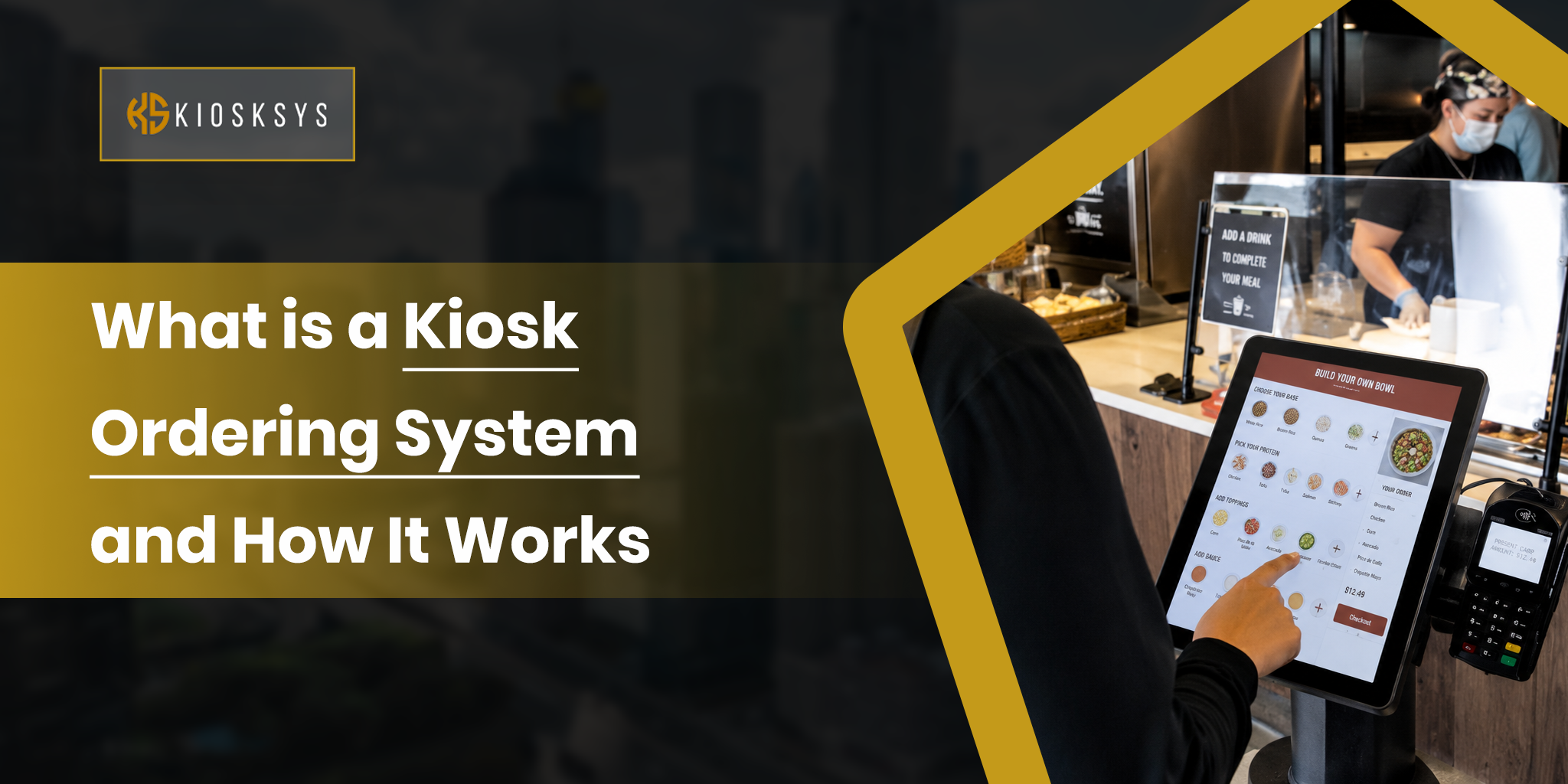
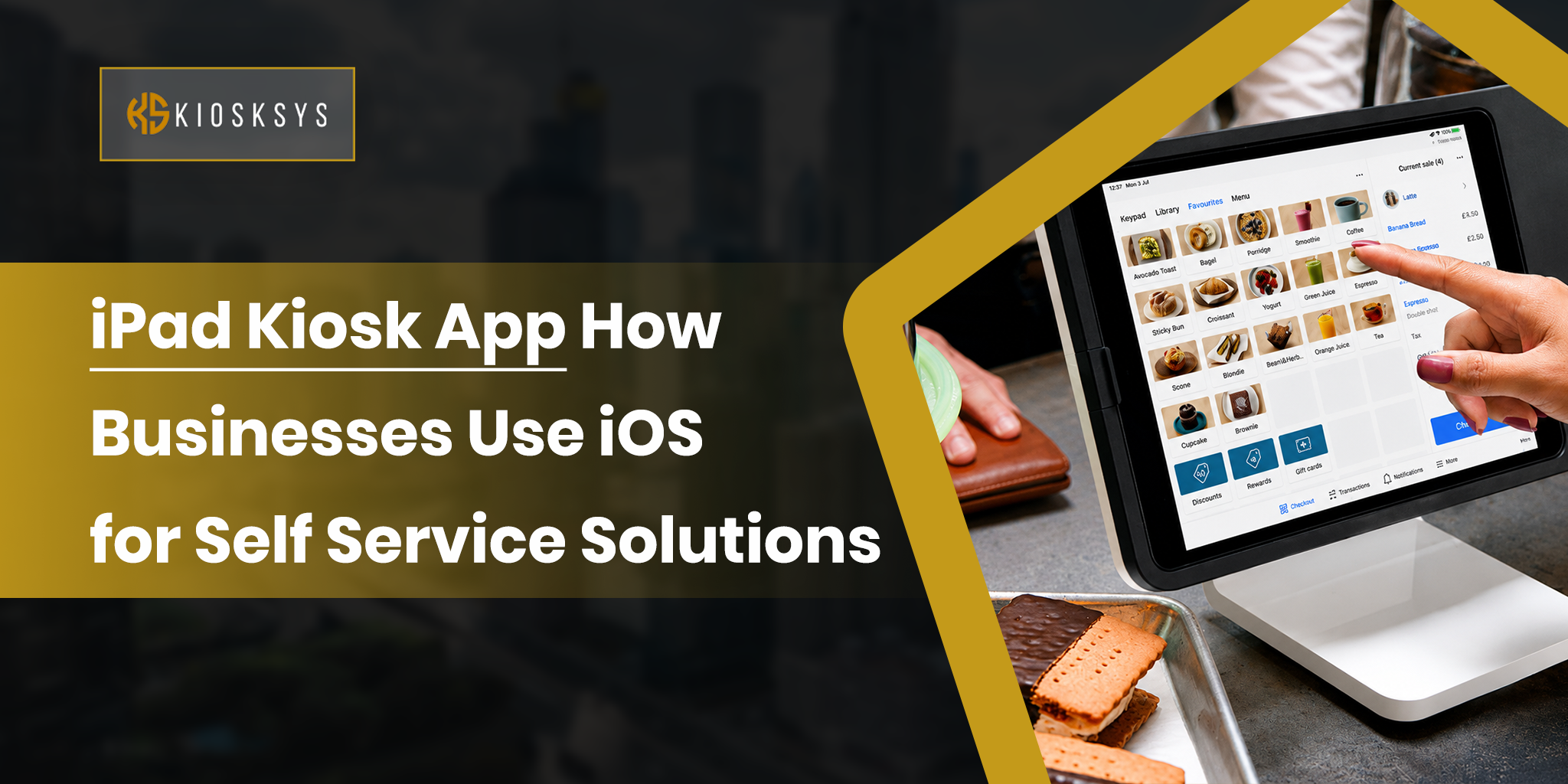
This is the most common use. Customers place orders directly on an iPad without waiting in line. They browse the menu, pick items, and customize their order. They also pay on the screen. The order goes straight to the kitchen system. This reduces waiting time. Staff can focus on food preparation. It can also increase order value because customers can explore the menu at their own pace.
Retail stores
Stores use iPads as self checkout points and product catalogs. Customers search for products and check availability. They can place orders even if the item is not on the shelf. Some stores also use kiosks for loyalty sign ups and feedback. This reduces pressure on staff during busy hours.
Hotels and hospitality
Hotels use iPads for check in and check out. Guests enter booking details and confirm identity. They get room information without waiting at the front desk. Some hotels also place iPads in rooms. Guests can order room service, book spa sessions, or view hotel information. This makes the stay faster and more flexible.
Healthcare
Clinics and hospitals use kiosks for patient check in. Patients confirm appointments and update details. They fill out forms before seeing the doctor. The system sends them to the correct waiting area. This reduces front desk load. The app stays locked to keep patient data secure.
Corporate offices and visitor management
Offices use iPads at reception for visitor sign in. Guests enter their name, who they are meeting, and the purpose of visit. The system notifies the host. It can also print badges if needed. This removes manual entry and keeps records clean.
Education
Schools and universities use iPads in controlled setups. Devices are locked to specific learning apps or exam tools. Students cannot access anything else. Libraries also use them for catalog search and learning tools. This keeps usage focused.
Events and trade shows
Events use iPads for registration and check in. Attendees enter details or scan codes. They get badges printed and move quickly through entry. One device can handle many people. It also helps track attendance in real time.
iPad Kiosk App vs Dedicated Kiosk Hardware
A common question businesses ask is whether to use an iPad with a kiosk app or go for dedicated kiosk hardware. Here is a simple comparison.
| Factor | iPad Kiosk App | Dedicated Kiosk Hardware |
| Upfront cost | Lower | Higher |
| Flexibility | High can be repurposed | Low, single purpose |
| Software ecosystem | Large App Store selection | Limited, mostly proprietary |
| Maintenance | Standard Apple support | Specialist hardware support |
| Remote management | Full MDM support | Depends on the vendor |
| Replacement | Easy and low cost | Expensive and slow |
| Branding | Fully customizable through the app | Often needs hardware changes |
| Durability | Good with proper enclosure | Built for heavy commercial use |
For most small to mid size restaurant and retail setups, an iPad with a well built kiosk app and proper enclosure can match dedicated hardware performance. It also costs less and is easier to scale or replace.
How to Set Up an iPad Kiosk App for Your Business
Setup depends on how many devices you are using and how you want to manage them.
For a single device using Guided Access
You enable Guided Access in settings, set a passcode, open the kiosk app, and lock it using a triple press of the side button. This is quick and works for basic use, but it is not ideal for scaling.
For multiple devices using MDM
iPads are enrolled through Apple Business Manager. A kiosk policy is created in an MDM platform. You choose single app mode, multi app mode, or web restricted mode depending on your setup. The policy is assigned to devices and pushed remotely. Once done, devices automatically switch to kiosk mode without manual setup.
For custom software setups
The process starts with defining how the flow should work. This includes ordering logic, integrations, and design. The app is built first and tested with your POS and payment system. After that, it is deployed to all devices through MDM.
Talk to KioskSys Experts for a Custom Self-Service Kiosk Solution
An iPad is strong hardware, but it does not define the experience. The kiosk app running on it is what controls everything. It decides how smoothly customers place orders, check in, or make payments, and how well the system connects with your POS, menu, and daily operations. When the app is weak or generic, even good hardware cannot fix the experience.
That is why many businesses move toward custom solutions instead of ready made apps. When workflows are specific, the app needs to match them, not the other way around.
At KioskSys, we build custom iPad kiosk apps based on real business operations, not templates. If you want a setup designed around your workflow, you can connect with KioskSys experts to discuss your project.