The Ultimate Guide to the Best Kiosk Software in 2026
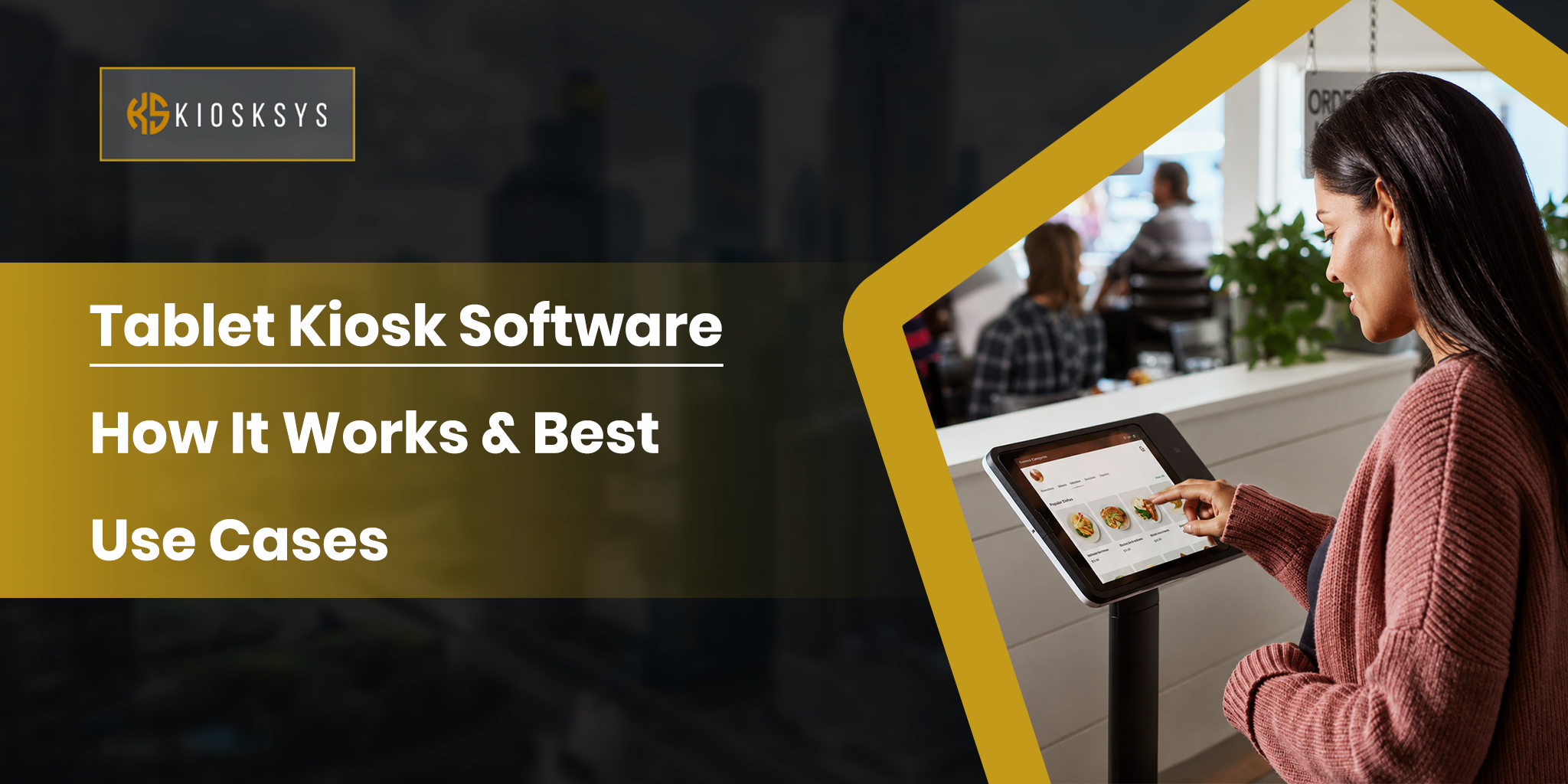
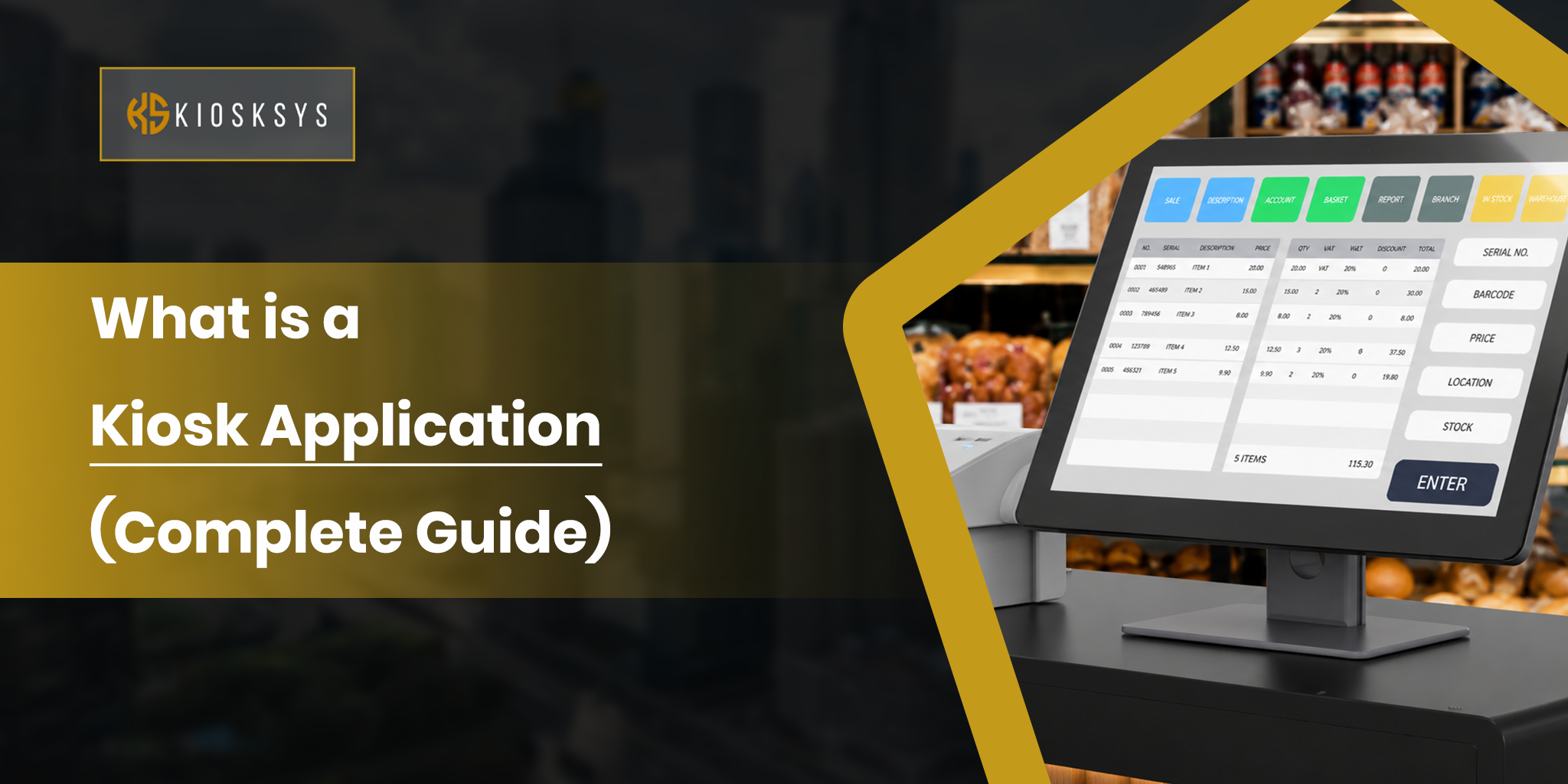
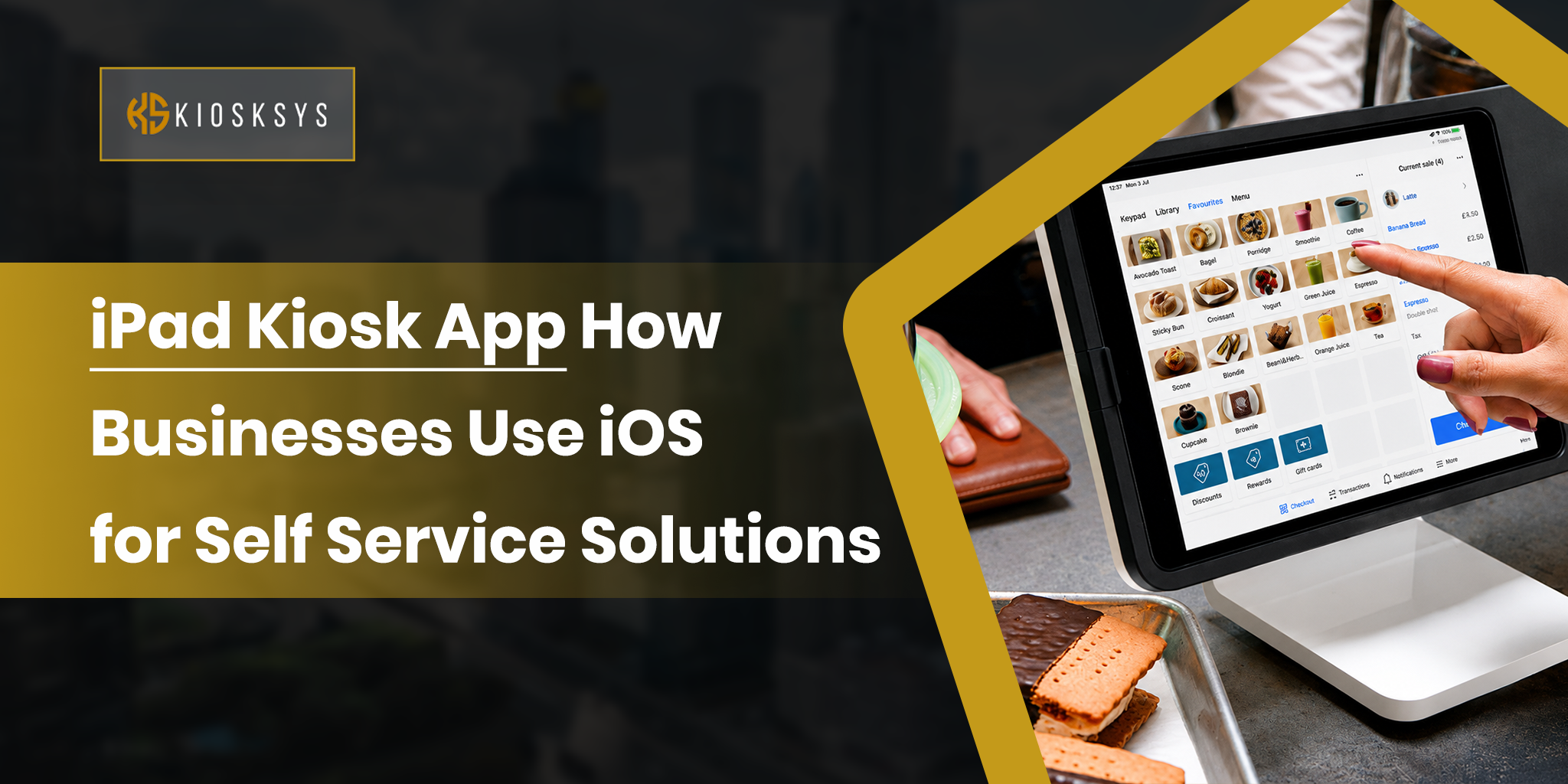
Kiosk software is a solution that locks a device to one or more specific applications. It removes access to the desktop, system settings, and anything outside what the business has approved. The device is no longer a general purpose computer. It becomes a dedicated system with one defined function.
It may sound simple, but the software behind it is more complex. It is not just a lock screen. It controls device management across locations, content updates, security rules, and hardware behavior. It also allows teams to monitor and fix issues remotely without needing to access each device in person.
In this guide, we will break down what the best kiosk software actually includes, the features that matter in a real deployment, where it delivers the most value across industries, and what to look for when you are making this decision for your business. If you are planning a kiosk rollout and want to get the software decision right from the start, this is your full starting point.
Why Software Matters More Than Hardware
Software holds 72.4 percent of the kiosk software market share, which is why buyers should focus on software strength before hardware design. Buyers who focus on the screen and enclosure first and figure out software later almost always regret it. The hardware is the frame. The software is everything that makes it actually work in your environment.
The operational case for getting this right is equally strong. Organizations report a 60 to 70 percent reduction in endpoint security incidents after implementing kiosk mode restrictions, and training time for new employees decreases by 50 percent when devices run only the apps required for specific job functions. These are not marginal improvements. They reflect what happens when you remove unnecessary complexity from a device and give it one well defined purpose with the right software behind it.
Most kiosk deployments that fail do not fail because of hardware. They fail because the software was not built around how the business actually operates. A generic platform forces you to adapt your workflow to its limitations. The right solution does the opposite.
Key Features of the Best Kiosk Software
Not every feature on a vendor’s list translates into real operational value. These are the ones that do:
Device Lockdown and Session Control
This is the foundation of any kiosk setup. Proper lockdown means users cannot use keyboard shortcuts to escape the approved app, access system tools, or exit the session in any way. It also controls what happens when a session ends. The screen resets, user data clears, and the device returns to its starting state automatically without staff involvement.
Without solid session control, public facing devices accumulate user data between sessions and become increasingly vulnerable over time.
Website Whitelist and Blacklist
If any part of your kiosk workflow involves a browser, you need precise control over which websites can load. Whitelisting approves only the URLs you define. Blacklisting blocks specific sites or entire categories. A kiosk that allows unrestricted browsing is not properly locked down, regardless of what else the software does. This should be a core feature of any best kiosk software evaluation, not an optional add on.
Remote Device Management
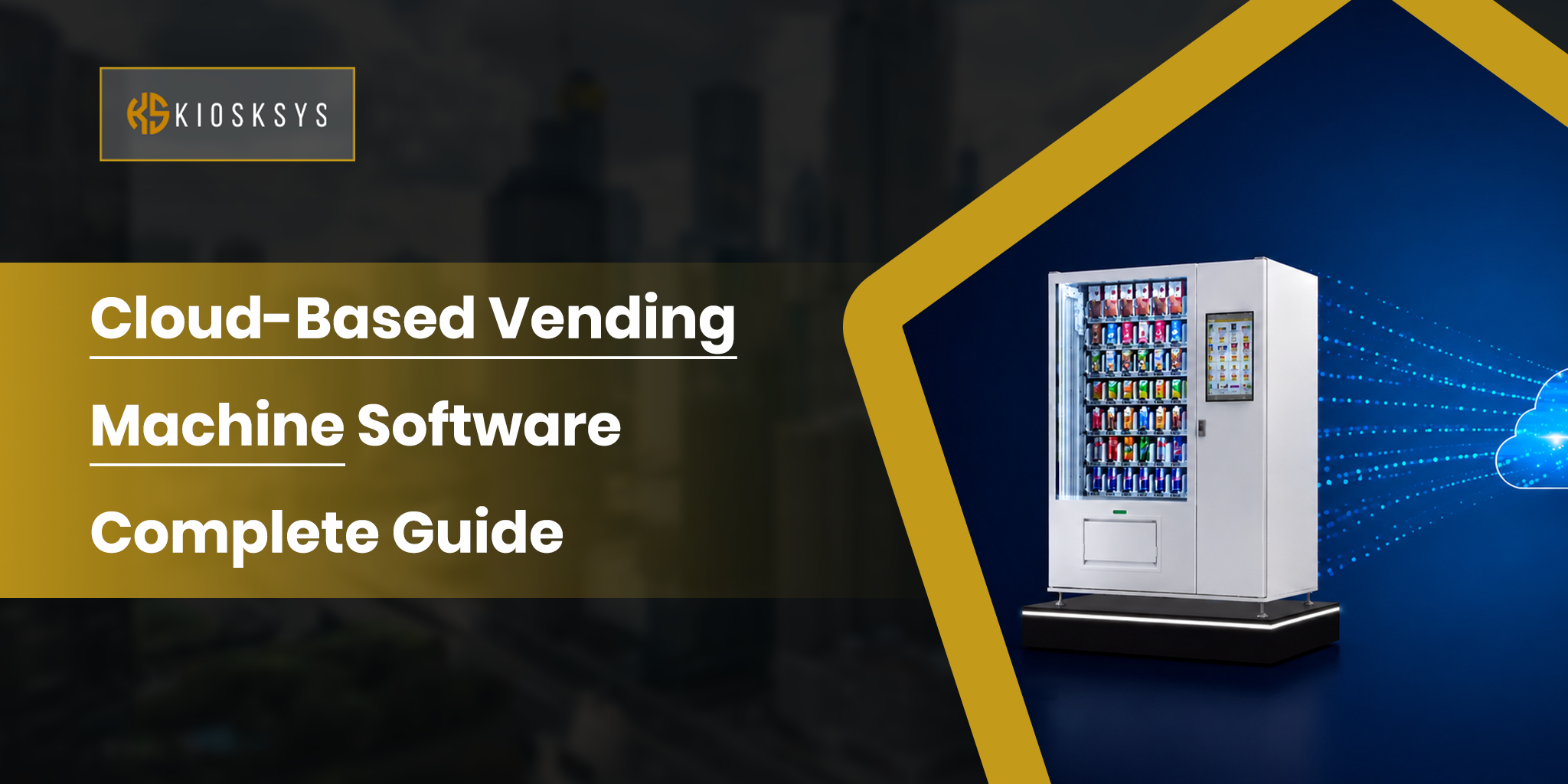
Cloud-based deployment holds 61.7% of the market, reflecting a strong preference for remote management and scalability. This preference exists for one practical reason. Businesses running kiosks across more than one location cannot afford to send someone to each device every time an update needs pushing or a configuration needs adjusting. Mordor Intelligence
Remote device management means you install apps, change configurations, push updates, and reboot devices from one central dashboard. One action, every device is updated. No site visits, no manual work at each location.
Remote Screen View
When a device has an issue during operating hours, the fastest path to resolution is seeing exactly what the user sees. Remote screen view lets your support team diagnose and fix problems in real time without leaving the office. For any business running kiosks across multiple sites, this feature directly reduces downtime and the operational cost that comes with it.
Hardware Controls
A locked screen does not protect you if someone can plug in a USB drive and extract data or connect via Bluetooth and access your network. The best kiosk software restricts hardware access at the software level. USB ports, Bluetooth, SD card slots, cameras, and other peripherals can all be controlled from your central dashboard. You define what the device interacts with physically, and everything else is blocked.
Analytics and Reporting
Every kiosk session generates useful data. How long did users spend? Where did they drop off? Which features were used most? Which devices had the most errors? The best kiosk software surfaces this in a readable dashboard, so your team can improve workflows, identify problem points, and justify the investment with real numbers rather than assumptions.
Integration With Your Existing Systems
Kiosks rarely operate in isolation. They need to connect with POS systems, payment gateways, CRM platforms, appointment systems, and backend databases. APIs allow kiosks to exchange data with other systems in real time. Without strong APIs, integrations become fragile and expensive to maintain. Ask any vendor for their API documentation early in the evaluation, not as a final step. A mature product will have it ready and will have proven integrations to reference. Mordor Intelligence
How the Best Kiosk Software Is Built: Step by Step
Understanding what goes into building kiosk software helps you ask better questions when evaluating any option, whether off the shelf or custom. It also helps you spot gaps before you are already committed to something that does not fit.
Step 1: Define the Use Case and Device Environment
Before a single line of code is written, the most important work happens on paper. What does the device need to do? Who is using it? Where does it sit? What does it connect to? A hospital check in kiosk has completely different requirements from a retail self checkout or a hotel lobby screen. Getting this wrong at step one means rebuilding later at a much higher cost.
This step also shapes the hardware and operating system decision. Windows, Android, and Linux each have different lockdown approaches, peripheral compatibility levels, and long term maintenance requirements. Define the environment first and let that drive the technical choices, not the other way around.
Step 2: Choose the Right Technology Stack
Once the use case is clear, you pick the technology to build on. Many kiosk solutions use React with TypeScript for the frontend bundled into Electron for deployment, with backend logic handled separately via API. The right stack depends on your hardware, your team, and how the software needs to behave in real operating conditions.
The key principle here is keeping the device lightweight. Complex operations like route calculations or data processing should be handled externally via API, with the device focused only on displaying results. A bloated stack running heavy operations locally will slow things down and create reliability problems exactly when you need the device to perform.
Step 3: Design the User Interface Around the Workflow
The interface is where kiosk software either earns user trust immediately or loses it. Large buttons, clear step by step flow, no access to system navigation, and visual cues that guide the user through the task without them needing to think too hard. Someone who has never touched the device before should be able to complete the full task without hesitation or needing a staff member nearby.
Good interface design also accounts for what happens when things go wrong. Session timeouts, abandoned interactions, and hardware disconnections. These are not rare edge cases in a public facing environment. They happen daily. The software needs to handle all of them gracefully, resetting automatically and cleanly without any staff involvement.
Step 4: Build and Configure Device Lockdown
Lockdown is the core security layer. It prevents users from exiting the approved app, accessing system settings, or interacting with the device in any way outside of what the business has defined. This goes beyond hiding the taskbar. The escape path needs to be genuinely impossible for any user, regardless of how persistent they are.
Lockdown configuration also defines what happens at session end. User data cleared. The screen resets. The device returns to its starting state automatically. Every session begins clean with no trace of the previous user. This matters especially in healthcare, finance, and any environment where data privacy is non negotiable.
Step 5: Integrate With Existing Systems
Kiosks do not work in isolation. They connect with payment gateways, POS systems, CRM tools, booking systems, and backend databases. This integration must be done properly. It decides whether the kiosk runs smoothly or creates constant sync issues later.
The integration layer also has to work in real conditions. Systems fail sometimes. That is normal. Payment gateways may time out. POS systems may go offline for a short period. These situations must be handled in the build itself. They should not be discovered during live use when customers are already at the screen.
Step 6: Configure Security, Compliance, and Hardware Controls
Security is not just about software access. It includes how data is stored, how it moves, and how it is protected. Communication must be encrypted. System access must be controlled. Every hardware channel also needs rules. USB ports, Bluetooth, SD cards, and cameras all need to be restricted at the system level.
In regulated industries like healthcare and finance, compliance is critical. Data retention rules must be defined clearly. Access must be logged. User activity must be trackable. These controls need to be built into the system from the start. They cannot be added later after a problem appears.
Step 7: Set Up Remote Management and Monitoring
After deployment, management becomes the main focus. Remote management allows teams to control devices without being physically present. Updates can be pushed remotely. Devices can be rebooted. Screens can be viewed. Settings can be changed. Alerts can be monitored from one dashboard.
This system must be ready before rollout. Not after issues appear. A properly built setup runs automatic checks. It logs errors in real time. It also sends alerts when something is wrong. This reduces downtime and prevents small issues from turning into major failures.
Step 8: Test on Real Hardware Before Deployment
Testing on a development system is not enough. The software must be tested on the actual devices it will run on. It must also be tested with real peripherals and real usage conditions. The goal is to see how it behaves under pressure, not in a controlled environment.
Try breaking the system. Test the kiosk lockdown. Check if sessions reset correctly. Simulate heavy usage like a busy day.
User testing is just as important as technical testing. Real users behave differently from developers. Watch how they interact with the screen. See where they pause or get confused. These small details often reveal problems that code testing cannot find. Fix these issues before deployment, not after the system goes live.
Step 9: Deploy, Monitor, and Keep Improving
Deployment is not the finish line. It is where real usage data starts telling you things your testing could not. Session analytics show where users drop off. Error logs reveal which components fail most often. Usage patterns tell you which features work and which ones need simplifying.
The improvement cycle after deployment is where the long term value of a well built kiosk shows up. A good remote management setup means updates happen without disrupting users or requiring site visits. A good analytics setup means every deployment cycle gets informed by real data. The best kiosk software is never truly finished. It gets better because the data tells you exactly where to focus next.
Available Kiosk Software Options in 2026
When evaluating the market, kiosk software generally falls into three categories.
- Off the shelf platforms are ready made solutions with fixed feature sets. Tools like KioWare, SiteKiosk, and Scalefusion fall into this category. They work well for standard use cases like basic single app lockdown or simple browser kiosks. The limitation is that they are built for the average deployment, not yours. When your workflow is specific, you spend more time working around the platform than working with it.
- MDM based solutions like Hexnode or ManageEngine are built primarily for device management across large fleets. They include kiosk mode as one feature among many. They work well for IT teams managing hundreds of mixed devices, but can be overpowered and expensive for businesses that only need kiosk functionality.
- Custom built software is built specifically around your workflow, your integrations, and your user experience from the start. There is no feature overhead, no working around limitations, and no paying for capabilities you will never use. For businesses with specific requirements, this is almost always the better long term choice.
How to Evaluate and Choose the Best Kiosk Software
Choosing the wrong platform costs more in the long run than choosing carefully at the start. A clear process helps avoid issues later.
Define the Use Case Before Looking at Vendors
Before checking any vendor, be clear on what the device must do. Decide if it is customer facing or for staff use. Check if it needs a browser. Confirm if it handles payments or sensitive data. Also, define whether it is a single device or a rollout across many locations. These answers decide which features are required and which are not.
Different use cases place different demands on kiosk software. Payment kiosks need strong security, encryption, and payment gateway support. Check-in kiosks need fast workflows and scanner integration. Ordering kiosks need speed and error handling. This clarity saves time. It also avoids choosing features that are not needed.
Test Remote Management in the Demo
Ask for live examples in the demo. This includes remote updates, remote reboot, and live screen viewing.
If a vendor only shows slides, the product may not be fully tested in real use. A strong platform will handle live actions without issues.
Evaluate Integration Before You Sign
Integration is where most kiosk projects fail after launch. Even good software fails if it cannot connect with existing systems.
Check this early. Do not leave it for the end. Ask for API documentation. Ask for past integration examples. If possible, test it with your own systems before you decide.
Look at Total Cost, Not Just Price
License cost is only one part of the total cost. Integration, customization, support, updates, and maintenance all add up.
A cheaper system that needs constant developer work can become more expensive over time. A stable system may cost more upfront but save money later. Always look at the cost over at least two years.
Know When Off the Shelf Is Not Enough
Off the shelf kiosk software works well for simple use cases. This includes retail checkout, basic check-in, and simple displays.
More complex workflows are different. Custom interfaces and deep system integration can expose limits in standard tools. Teams often end up adjusting their process to fit the software. In these cases, a custom solution is often more practical and cost effective over time.
Build a Kiosk Setup That Actually Fits Your Business
Most kiosk deployments run into problems not because the hardware fails, but because the software was not built around how the business actually operates. The right solution adapts to you from the start.
At KioskSys, we build custom kiosk software around how your devices, your users, and your operations actually work. That means the device lockdown, integrations, remote management, and user experience are all designed around your specific requirements from day one so it runs smoothly and grows with you. If you are a business owner evaluating the best kiosk software for your deployment, we can help you build something that fits rather than something you have to work around.
Frequently Asked Questions
What is the best kiosk software?
What is the difference between kiosk software and kiosk mode?
Kiosk mode is a built in operating system feature. It locks a device to one or more apps. It offers basic control only. Kiosk software is a full system layer. It adds remote management, security rules, browser control, hardware restrictions, and monitoring. It is used in business environments that need scale and control.
What is the best kiosk software for Windows 10?
Can kiosk software be managed remotely?
What is the best kiosk software for a small business?
Windows 11 has Assigned Access for basic kiosk setups. It supports single and multi app modes.
For larger setups, more control is needed. Remote management, browser restrictions, hardware control, and centralized deployment require dedicated kiosk software or custom solutions.