Kiosk Software Requirements: What Every Business Should Know
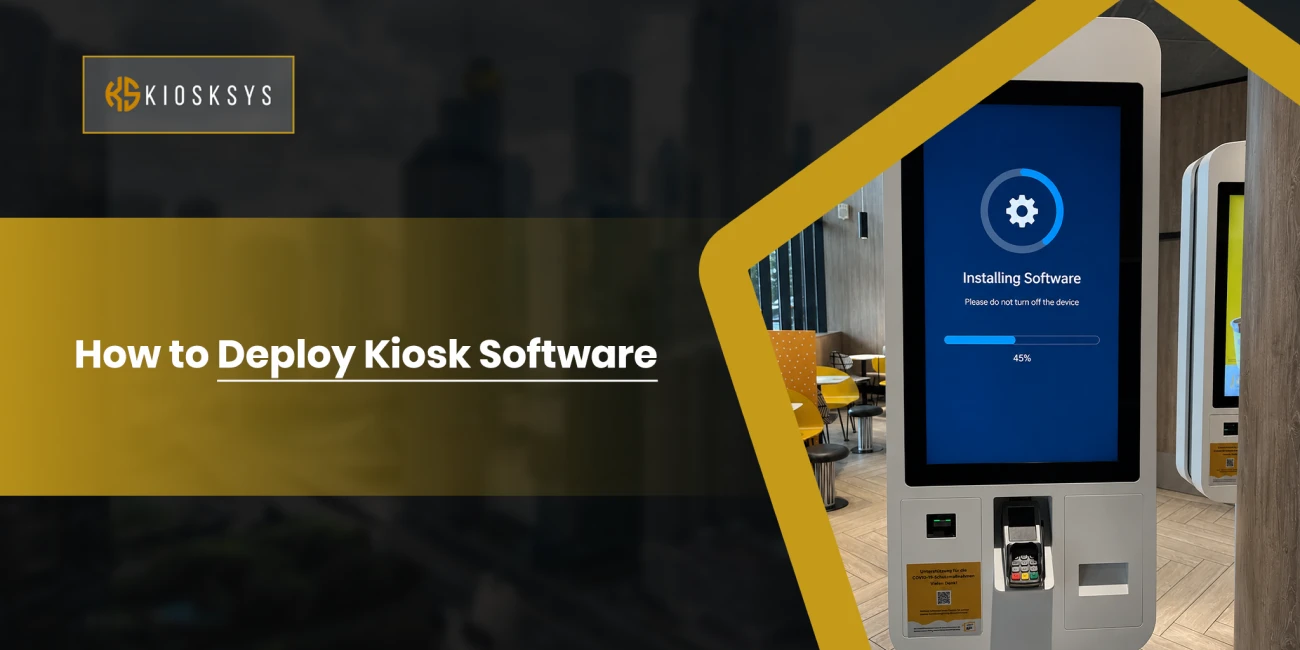
If you’ve ever walked up to a self checkout machine that’s frozen on a logo screen, or an airport check in kiosk stuck loading forever, you’ve seen what happens when kiosk deployment gets rushed. The software itself is usually fine. It’s everything around it, the hardware choice, the lockdown settings, the network, the update plan, that determines whether a kiosk runs quietly for three years or turns into a daily headache for your support team. So without any further ado, let’s learn how to deploy kiosk software!
1. Figure Out What You’re Actually Building
It’s tempting to jump straight to picking software, but most kiosk problems trace back to skipped planning.
Know the Actual Use Case
A kiosk taking food orders at a busy lunch counter has completely different needs than one sitting quietly in a hotel lobby showing a map. Write down exactly what the device needs to do, who’s using it, and how long each interaction should take. This shapes every decision that follows.
Single App or Multiple Apps?
Most kiosks should run one app and nothing else. It’s simpler to lock down, easier to troubleshoot, and there’s less that can go wrong. Multi app setups make sense occasionally (think a hotel business center), but they bring extra complexity you don’t want unless you need it.
Don’t Skimp on Hardware
Screen size, touch sensitivity, and build quality all matter more than people expect. If the kiosk sits outdoors or in a busy public area, you’ll want a rugged, sealed enclosure. Underpowered hardware is one of the most common reasons kiosks feel sluggish or unreliable after launch.
2. Pick an Operating System That Fits Your App
The OS you choose shapes nearly every decision that comes after it, so it’s worth getting right early.
Windows
Windows has Assigned Access built in for locking a device to one app, plus enterprise provisioning tools for setting up devices in bulk. It’s a solid choice if your kiosk app is already a Windows desktop application or you need wide support for unusual peripherals.
Android
Android is everywhere in retail and hospitality kiosks because the hardware is cheap and Android’s Lock Task Mode handles kiosk lockdown natively. Most mobile device management tools have good Android support too, so it’s easy to manage a large fleet.
iPadOS
Apple’s Guided Access locks an iPad into one app and disables the home button and gestures. Setup is quick, though you get less granular control compared to Windows or Android once you’re managing dozens of devices remotely.
Dedicated Kiosk Platforms
Beyond what the OS gives you natively, purpose built kiosk software adds things like browser sandboxing, remote dashboards, scheduled restarts, and automatic crash recovery. Worth it once you’re past a handful of units.
3. Lock the Device Down
This is the part that actually makes something a “kiosk” rather than just a tablet with an app open.
Turn Off Everything You Don’t Need
Block access to the home screen, notification panel, settings menu, and task switcher. Disable hardware buttons that could let someone exit the app, and remove pre installed apps you’re not using. If USB ports aren’t needed for a scanner or printer, disable those too.
Make It Self Heal
The kiosk app should launch automatically when the device boots, and it needs to relaunch on its own if it crashes. A frozen screen sitting unattended for hours is a worst case scenario, so build in a watchdog process or use whatever crash recovery feature your kiosk platform offers.
Restrict the Network
Only allow outbound traffic to the domains and APIs the app genuinely needs. Put kiosk devices on their own VLAN, separate from your internal network, so a compromised device can’t reach anything sensitive.
Don’t Forget Physical Security
Cable locks, tamper resistant enclosures, and BIOS passwords matter here too. Someone with five minutes alone and a USB drive can do a lot of damage if the physical device isn’t secured too.
4. Roll Out Multiple Devices
Manually configuring kiosks one at a time works for a pilot, but it falls apart fast once you’re past a handful of units.
Build One “Golden” Configuration
Set up a single device exactly the way you want it, OS settings, app, certificates, lockdown policy, all of it, then clone that image to every new device. Manually configuring each kiosk one at a time doesn’t scale past a handful of units.
Use Zero Touch Enrollment
Android Enterprise and Apple Business Manager both support zero touch enrollment, where a brand new device pulls its full configuration automatically the first time it connects to Wi Fi. No technician needed on site.
Track Every Device
Give devices a consistent naming pattern (location, store number, role) and register them in your management platform from the start. This sounds minor until you’re troubleshooting device #247 out of 300 and need to know exactly where it is.
5. Keep an Eye on Things After Launch
A kiosk deployment isn’t really finished at launch; it just enters a different phase that needs its own attention.
Get an MDM Platform
A decent mobile device management or kiosk management tool lets you push updates, change settings, check device health, and remotely lock or wipe a unit, all without sending someone to the location.
Watch the Health Metrics
Battery level, storage space, network status, and crash logs. Set up alerts so you find out about a problem before a customer does.
Schedule Quiet Maintenance
Set automatic reboots and updates for off hours. This clears memory leaks and keeps things responsive without interrupting anyone during the busy part of the day.
6. Test It Before You Go Live
Lab testing only gets you so far. Real-world conditions tend to break things lab testing never catches.
Start With a Pilot
Roll out to a handful of locations first. Real people tapping the screen with sticky fingers, glare on the display, and spotty Wi Fi are all surface problems that lab testing never catches.
Push It to Its Limits
What happens if the network drops mid transaction? What if the app sits idle for six hours? What if the receipt printer runs out of paper? Each of these needs a defined way to recover gracefully, not just an error message.
Check Accessibility
If the public is using this kiosk, it needs to meet accessibility standards (ADA in the US, EN 301 549 in the EU). Adjustable text size, audio support, and touch targets reachable from a wheelchair aren’t optional extras.
7. Launch, Train Your Team, and Keep It Running
Going live is the start of the next phase, not the finish line, and a few simple habits make the difference long-term.
Train the People On Site
Even a fully automated kiosk benefits from staff who know how to restart it and who to call when something’s wrong. A two minute training session can prevent a lot of unnecessary support tickets.
Set an Update Schedule
Decide how often the app gets updated and how you’ll roll those updates out safely. Staged rollouts, pushing to 5% of devices, then 25%, then everyone, catch problems before they hit your whole fleet at once.
Plan for Hardware Getting Old
Kiosks have a hardware lifespan of several years. Budget for eventual replacement, and pick software that won’t lock you into hardware nobody supports anymore down the line.
Conclusion
Deploying kiosk software well isn’t really about the install. It’s about everything that happens before and after it. Plan the use case properly, lock the device down tight, make rollout repeatable, and keep watching the fleet once it’s live. Pilot before you scale, build in crash recovery from day one, and remember that nobody’s standing next to these devices most of the time. The kiosk has to take care of itself.
Frequently Asked Questions
What's the difference between kiosk mode and just locking down a regular device?
Kiosk mode restricts a device to one app, or a small curated set of apps, and removes access to the underlying OS entirely. General device lockdown might disable some features but still allows normal multi app use.
Can I just use a regular consumer tablet for a kiosk?
You can, but consumer tablets usually lack the durability and port options that purpose built kiosk hardware has. They’re fine for low traffic or short term deployments, less so for something running 24/7 in a public space.
How do I stop people from exiting the kiosk app?
Use the OS’s native lockdown feature (Assigned Access, Lock Task Mode, Guided Access) and disable hardware buttons and gesture shortcuts. Most dedicated kiosk software blocks common exit tricks too, like multi finger taps and long presses.
How often should I update the kiosk software?
Depends on the deployment, but monthly or quarterly is common for routine updates. Anything touching payments or core functionality should go through a staged rollout to limit risk if something breaks.
What happens if a kiosk loses its internet connection?
A well built kiosk app should have some kind of offline mode, caching recent data or queuing transactions to sync later, rather than just freezing or crashing. At minimum, it should show a clear “temporarily unavailable” message.
Do I really need an MDM platform for just a couple of kiosks?
For one or two devices, you can probably manage manually. Past five or ten devices, an MDM platform saves a lot of time on updates, monitoring, and troubleshooting, enough that it usually pays for itself.